超级管理员

2026-06-08 14:06

示例增强:


const getPrintTestHtlm = (printData) => {

 return `<!DOCTYPE html>

<html lang="zh-CN">

<head>

 <meta charset="UTF-8">

 <meta name="viewport" content="width=device-width, initial-scale=1.0">

 <title>${printData.title}</title>

 <style>

   * {

     box-sizing: border-box;

   }

   body {

     margin: 0;

     padding: 24px;

     font-family: "Microsoft YaHei", "PingFang SC", sans-serif;

     font-size: 14px;

     line-height: 1.6;

     color: #303133;

     background: #f5f7fa;

   }

   .page {

     max-width: 800px;

     margin: 0 auto;

     padding: 40px;

     background: #fff;

     border-radius: 8px;

     box-shadow: 0 2px 12px rgb(0 0 0 / 8%);

   }

   .header {

     padding-bottom: 16px;

     margin-bottom: 24px;

     border-bottom: 2px solid #409eff;

   }

   .header h1 {

     margin: 0 0 8px;

     font-size: 24px;

     color: #303133;

   }

   .header .meta {

     font-size: 13px;

     color: #909399;

   }

   .section {

     margin-bottom: 24px;

   }

   .section h2 {

     margin: 0 0 12px;

     font-size: 16px;

     color: #409eff;

   }

   table {

     width: 100%;

     border-collapse: collapse;

     margin-top: 8px;

   }

   th,

   td {

     padding: 10px 12px;

     text-align: left;

     border: 1px solid #dcdfe6;

   }

   th {

     font-weight: 600;

     color: #606266;

     background: #f4f4f5;

   }

   tr:nth-child(even) td {

     background: #fafafa;

   }

   .tag {

     display: inline-block;

     padding: 2px 8px;

     margin-right: 6px;

     font-size: 12px;

     color: #409eff;

     background: #ecf5ff;

     border-radius: 4px;

   }

   .highlight {

     padding: 12px 16px;

     margin-top: 8px;

     background: #fdf6ec;

     border-left: 4px solid #e6a23c;

     border-radius: 0 4px 4px 0;

   }

   .footer {

     margin-top: 32px;

     padding-top: 16px;

     font-size: 12px;

     color: #909399;

     text-align: center;

     border-top: 1px dashed #dcdfe6;

   }

   /* 仅屏幕显示,打印时隐藏 */

   .no-print {

     position: fixed;

     right: 24px;

     bottom: 24px;

     z-index: 999;

   }

   .no-print button {

     padding: 10px 24px;

     font-size: 14px;

     color: #fff;

     cursor: pointer;

     background: #409eff;

     border: none;

     border-radius: 6px;

     box-shadow: 0 2px 8px rgb(64 158 255 / 40%);

   }

   .no-print button:hover {

     background: #66b1ff;

   }

   /* 打印专用样式 */

   @media print {

     body {

       padding: 0;

       background: #fff;

     }

     .page {

       max-width: none;

       padding: 0;

       border-radius: 0;

       box-shadow: none;

     }

     .no-print {

       display: none !important;

     }

     table,

     tr,

     img {

       page-break-inside: avoid;

     }

     .page-break {

       page-break-after: always;

     }

     @page {

       size: A4;

       margin: 20mm;

     }

   }

 </style>

</head>

<body>

 <div class="page">

   <header class="header">

     <h1>打印测试文档</h1>

     <div class="meta">生成时间:<span id="printTime"></span> · 用途:验证 HTML 打印效果</div>

   </header>

   <section class="section">

     <h2>一、基本信息</h2>

     <p>这是一份用于测试浏览器打印功能的 HTML 页面,可直接双击打开,按 <strong>Ctrl + P</strong> 打印或另存为 PDF。</p>

     <p>

       <span class="tag">文本</span>

       <span class="tag">表格</span>

       <span class="tag">样式</span>

       <span class="tag">分页</span>

     </p>

   </section>

   <section class="section">

     <h2>二、数据表格</h2>

     <table>

       <thead>

         <tr>

           <th>序号</th>

           <th>名称</th>

           <th>类型</th>

           <th>状态</th>

         </tr>

       </thead>

       <tbody>

         <tr>

           <td>1</td>

           <td>开始节点</td>

           <td>输入变量</td>

           <td>正常</td>

         </tr>

         <tr>

           <td>2</td>

           <td>结束节点</td>

           <td>返回文本</td>

           <td>正常</td>

         </tr>

         <tr>

           <td>3</td>

           <td>测试变量</td>

           <td>字符串</td>

           <td>正常</td>

         </tr>

       </tbody>

     </table>

   </section>

   <section class="section">

     <h2>三、提示说明</h2>

     <div class="highlight">

       打印时在对话框中勾选「<strong>背景图形</strong>」,可保留表格底色和标签样式。

     </div>

   </section>

   <footer class="footer">

     JeeLowCode 打印测试 · 第 1 页

   </footer>

 </div>

 <div class="no-print">

   <button type="button" onclick="window.print()">点击打印</button>

 </div>

 <script>

   document.getElementById('printTime').textContent = new Date().toLocaleString('zh-CN');

 </script>

</body>

</html>

`

}

const callPrint = (printData) => {

 const html = getPrintTestHtlm(printData)

 const iframe = document.createElement('iframe')

 iframe.style.cssText = 'position:fixed;width:0;height:0;border:0;'

 document.body.appendChild(iframe)

 const doc = iframe.contentWindow.document

 doc.open()

 doc.write(html)

 doc.close()

 iframe.onload = () => {

   iframe.contentWindow.focus()

   iframe.contentWindow.print()

   setTimeout(() => document.body.removeChild(iframe), 1000)

 }

}

return {

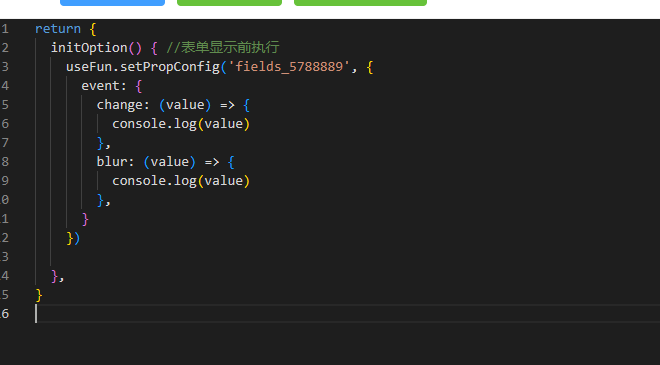
 initOption() { //表单显示前执行

   setTimeout(() => {

     callPrint({ title: '测试打印' })

   }, 1000)

 },

}

2026-06-08 11:47

最新版本可以调用:useFun.getCustomControlRef

不是的话

看你配置应该是在栅格布局里面,参考下面获取

2026-06-08 10:54

对 25年5月份有修复,如果不想更新可以下载25年9月份的代码,然后替换下面这几个文件,看看行不行

后端应该也是得更新大致是/admin-api/system/auth/get-permission-info接口多返回了个type

2026-06-08 10:29

没办法 自定义表单的格式千奇百怪的 不能统一处理 ,默认的主附表表单是有处理的

2026-06-08 10:26

那应该没问题的,我这边测试正常 开启缓存后页面不会重新加载,搜索条件就不会被清空

2026-06-08 10:25

对要处理成数组

自定义表单要手动处理一下数据

参考: https://doc.jeelowcode.com/doc/1800-3-6

2026-06-08 10:07

什么报错呢?前端传过来的是空数组[]来的

2026-06-08 09:40

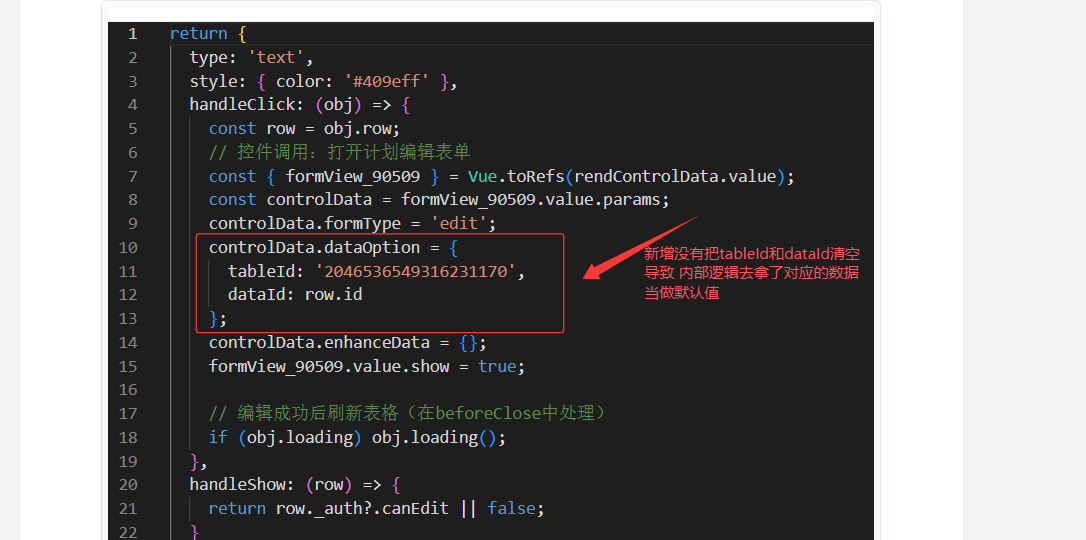
不是直接调用openCustomForm('edit', row) 就可以了 row是当前行数据

2026-06-08 09:39

remote属性是远程搜索,仅支持下拉选择框控件,你现在用的是树形选择控件不支持远程搜索


树形要实现只能通过下面的方法

把字典label格式化一下以  姓名-拼音-首字母 进行显示

然后在控件配置中开启过滤

2026-06-08 09:31

自定义表单用这个:openCustomForm('edit', row)

2026-06-08 09:24

你这个是树形选择器,不支持remote属性,仅下拉框支持